How to Build a Gantt Chart in Power BI With the New Core Visual
Power BI finally has a native Gantt chart. Here’s what it can do, how people reacted, and every click it takes to build my release pipeline chart from a blank page, with the .pbix to download.
The Power BI October 2026 update shipped something I didn’t see coming: a Gantt chart as a core visual (Microsoft’s feature summary). No AppSource visual, no extra licence, and no more bending a stacked bar chart into a fake Gantt.
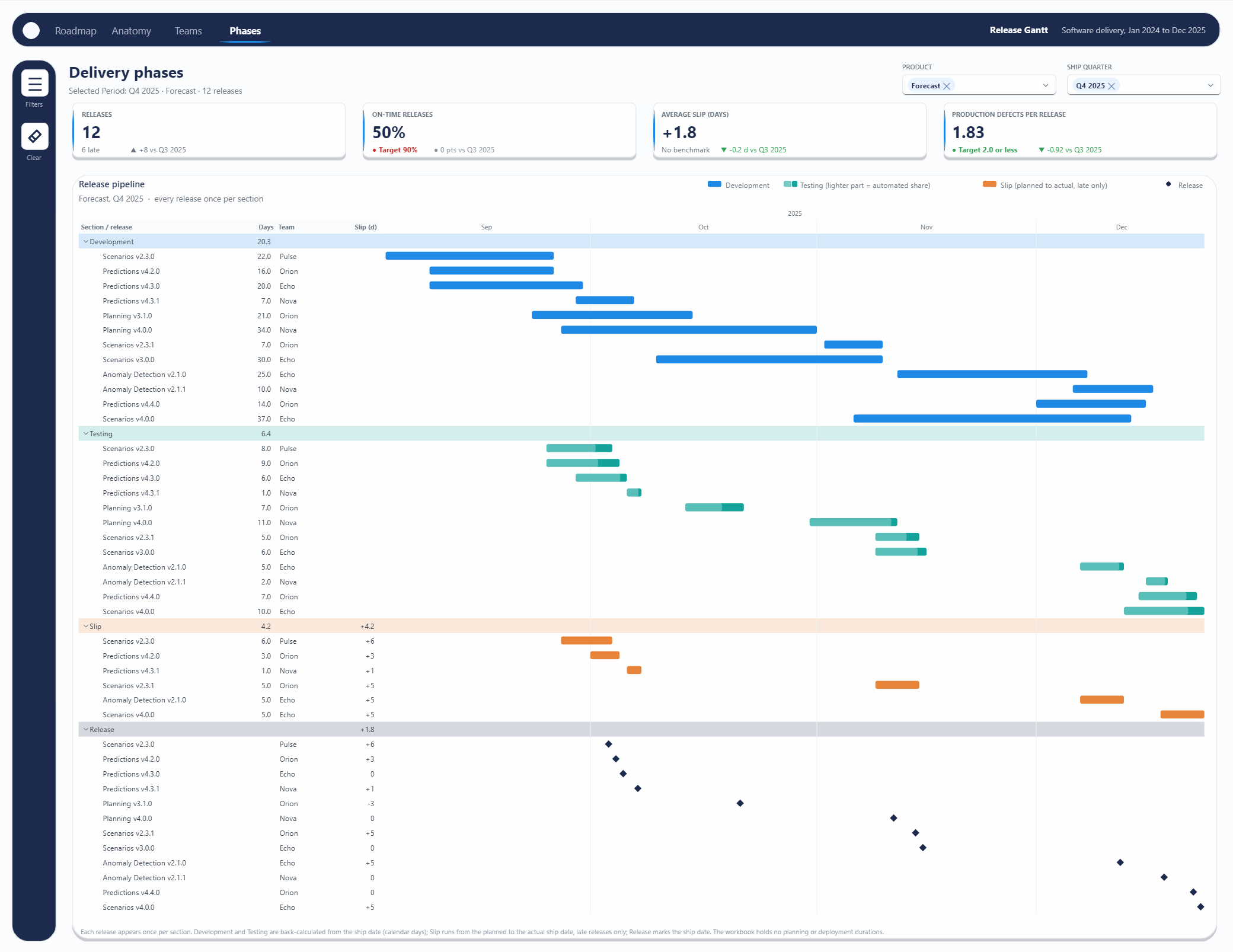
I posted about it on LinkedIn the day it landed, and the post took off, so I built a report with it. This post has two halves. The first is what the visual does, what it can’t do yet, and what people said about it. The second is a walkthrough that builds the Release pipeline chart above from a blank page, with a screenshot of every menu you need to touch.
What the new Gantt chart does
It’s a core visual, so it comes with Power BI the same way a bar chart does. Between Microsoft’s documentation and a week of building with it, this is what you get:
- One row per task, with a bar from its Start to its End. Both wells take measures, so you control what each level shows.
- Milestones: give a row a Start, leave its End blank, and it draws a diamond instead of a bar.
- Progress: a measure between 0 and 1 fills part of each bar. By default it’s a white overlay; you can make it a solid fill or a thin line by changing its colour, transparency and height.
- Up to three category levels above the task rows, which expand and collapse like a matrix.
- Extra columns beside the task list (owner, status, days), with subtotals on the category rows when the column is a measure.
- Colours that cascade. Set one colour under Rows > Colors and it flows to the category bands, bars and milestones at different transparencies. For more control, the same card has a More granular switch: turn it on for a category level or the task rows and you get a colour picker for each value. Conditional formatting works on the task rows too.
- A proper time axis: your own start and end dates, date formats, two fixed levels (eg. months over years), weekend shading, and a zoom slider for readers.
The same release also brought a dropdown mode for the list slicer, which the walkthrough uses for its two slicers.
What it can’t do yet
- It’s a preview. Names and defaults in the Format pane may change before it’s generally available, so don’t rush it into production. Everything here was done in Desktop 26.10.
- 1,000 rows at most. Filter the visual or the page so a selection stays under it.
- Category rows never draw a bar. There’s no summary bar for a group; the bands and the columns carry the hierarchy.
- Conditional formatting colours task rows only. To colour the category rows (the section bands in this post), turn on More granular for that level and pick a colour for each value. Microsoft warns that those per-value colours might not apply at some category levels, or to tasks that appear in more than one category.
- No dependencies. There’s no well for predecessors, so no arrows between tasks and no critical path.
- Day, month and year units only. No week or quarter, and Auto-scale ignores the units you pick until you turn it off.
- No legend. You draw your own (step 12).
How people reacted
My LinkedIn post on the release had 93,812 impressions, 692 reactions, 37 comments and 22 reposts when I checked on 21 October. That’s a lot of people who care about Gantt charts! The comments fell into a few themes:
- Relief. Most comments came down to “finally”. Plenty of people had spent years building fake Gantts out of stacked bar charts and workaround measures and were glad to retire them.
- What people want it for. Construction schedules, production planning, finance close calendars, audit lists, capital projects and contract tracking. That reaches well beyond project management.
- What people asked for. Dependencies and a critical path, planned versus actual dates with milestones, and filtering by product line. The release pipeline below covers the last two: its Slip section runs from the planned to the actual ship date, and a slicer picks the product. Dependencies aren’t possible yet.
- Caution. A few people pointed out that it’s a preview, and a couple can’t use it until their organisation moves to the October release.
The report and the data
The data is the Software Delivery & Quality dataset from the ZoomCharts Power BI Challenge for October 2026, so credit to ZoomCharts for it. It’s one Excel workbook: 643 software releases across 35 product modules and 14 teams, from January 2024 to December 2025, each with its planned and actual ship dates, development and testing days, tests run and the automated share of testing. This isn’t a challenge entry (entries use ZoomCharts’ own visuals, and the challenge is open until 26 October if you want to enter); it’s just a good dataset for a Gantt.
The report has four pages, each built around one Gantt:
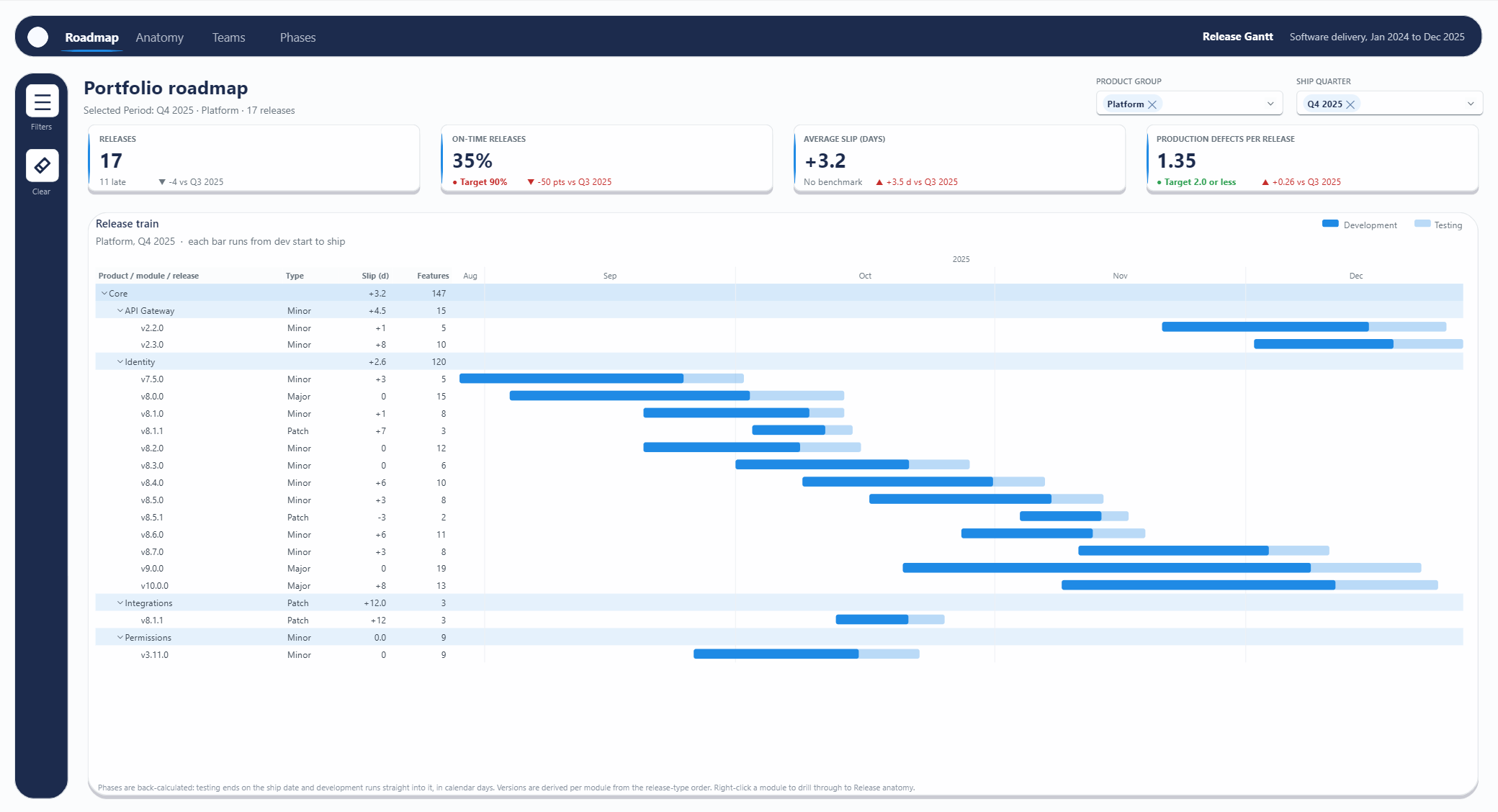
- Portfolio roadmap: every release of a product group in a quarter, one bar from development start to ship (the recipe card below).
- Release anatomy: one module in one month, each release split into Development and Testing bars on a day axis with weekends shaded.
- Team delivery: one team’s releases over half a year, with the late ones in orange.
- Delivery phases: the release pipeline this post builds.
The background on every page (the header bar with the page tabs, the filter rail and the panel shapes) was made with Report Hacker, my free tool for designing a Power BI page in the browser. The KPI tiles and the header are in the download; the walkthrough sticks to the chart and what drives it. Here is the published report, running live in the Power BI Service:
Build the release pipeline, step by step
The chart puts the phase in the category and the release in the task row, so every release shows up once in each of four coloured sections:
- Development and Testing bars, worked back from the ship date. The lighter part of a Testing bar is the automated share of its tests.
- Slip runs from the planned to the actual ship date, for late releases only.
- Release is a diamond on the ship date.
Steps 1 to 4 load and shape the data, step 5 writes the measures, steps 6 to 11 build and format the chart, and steps 12 to 14 finish the page. Click any screenshot to open it full size.
Step 1: Turn on the preview
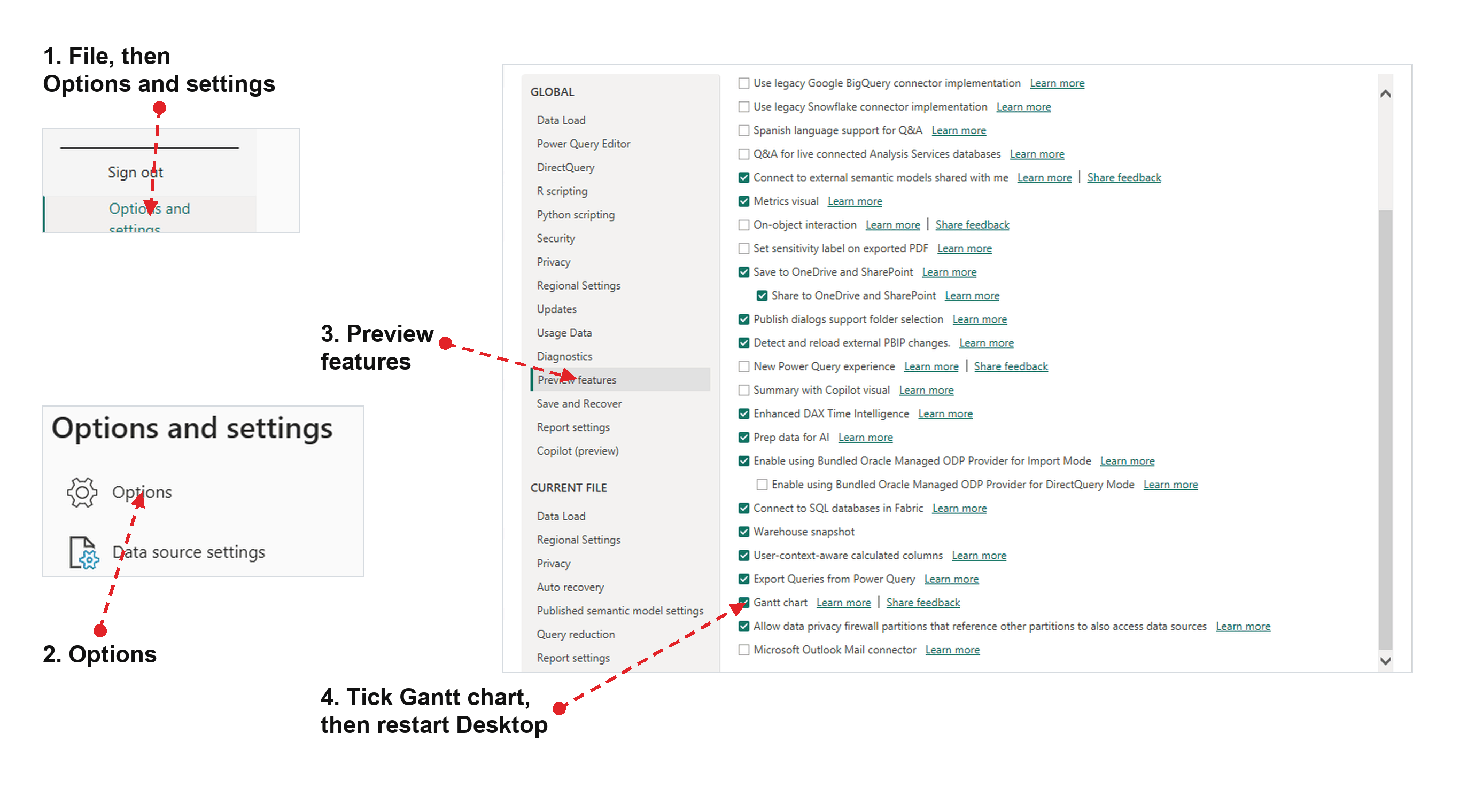
Microsoft says to switch the Gantt on under File > Options and settings > Options > Preview features, then restart Desktop. In my copy of Desktop 26.10 it was already ticked, so check the Visualizations pane first.
Step 2: Load the workbook
Download the workbook from the challenge page. All the queries read it through one parameter, so the file can live anywhere:
- Open Transform data, then Manage parameters > New parameter. Name it
SourceFile, set Type to Text, and paste the workbook’s full path as the current value. - For each query below, choose New source > Blank query, open the Advanced Editor, paste the code and rename the query. Do Products first, because Releases reads its module names.
Products products and modules, with a label for modules that share a name
let
    Source = Excel.Workbook(File.Contents(SourceFile), null, true),
    Products = Table.PromoteHeaders(Source{[Item = "DimProduct", Kind = "Sheet"]}[Data], [PromoteAllScalars = true]),
    Kept = Table.SelectColumns(Products, {"Product ID", "Product Group", "Product", "Module"}),
    Costs = Table.PromoteHeaders(Source{[Item = "DowntimeCost", Kind = "Sheet"]}[Data], [PromoteAllScalars = true]),
    WithCost = Table.AddColumn(Kept, "Downtime Cost per Minute",
        (r) => Costs{[#"Product ID" = r[#"Product ID"]]}[#"Downtime Cost per Minute ($)"], type number),
    // Append the product only where a module name is shared by two products
    ModuleCounts = Table.Group(Kept, {"Module"}, {{"Products", each Table.RowCount(_), Int64.Type}}),
    WithLabel = Table.AddColumn(WithCost, "Module Label",
        (r) => if ModuleCounts{[Module = r[Module]]}[Products] > 1 then r[Module] & " (" & r[Product] & ")" else r[Module], type text),
    Typed = Table.TransformColumnTypes(WithLabel, {
        {"Product ID", type text}, {"Product Group", type text}, {"Product", type text}, {"Module", type text},
        {"Downtime Cost per Minute", type number}, {"Module Label", type text}})
in
    Typed
Teams the 14 delivery teams
let
    Source = Excel.Workbook(File.Contents(SourceFile), null, true),
    Teams = Table.PromoteHeaders(Source{[Item = "DimTeam", Kind = "Sheet"]}[Data], [PromoteAllScalars = true]),
    Kept = Table.SelectColumns(Teams, {"Team ID", "Team"}),
    Typed = Table.TransformColumnTypes(Kept, {{"Team ID", type text}, {"Team", type text}})
in
    Typed
Releases one row per release, with its phases worked back from the ship date
let
    Source = Excel.Workbook(File.Contents(SourceFile), null, true),
    Fact = Table.PromoteHeaders(Source{[Item = "FactReleasePerformance", Kind = "Sheet"]}[Data], [PromoteAllScalars = true]),
    Typed = Table.TransformColumnTypes(Fact, {
        {"Release ID", type text}, {"Product ID", type text}, {"Team ID", type text},
        {"Release Date", type date}, {"Planned Release Date", type date}, {"Release Type ID", type text},
        {"Features Delivered", Int64.Type}, {"Development Days", Int64.Type}, {"Testing Days", Int64.Type},
        {"Tests Executed", Int64.Type}, {"Tests Failed", Int64.Type}, {"Automated Tests %", type number},
        {"Pre-release Defects", Int64.Type}, {"Production Defects", Int64.Type},
        {"Critical Production Defects", Int64.Type}, {"Production Incidents", Int64.Type},
        {"Downtime Minutes", Int64.Type}, {"Avg Incident Resolution Hours", type number}}),
    Kept = Table.SelectColumns(Typed, {
        "Release ID", "Product ID", "Team ID", "Release Date", "Planned Release Date", "Release Type ID",
        "Features Delivered", "Development Days", "Testing Days", "Tests Executed", "Tests Failed",
        "Automated Tests %", "Pre-release Defects", "Production Defects", "Critical Production Defects",
        "Production Incidents", "Downtime Minutes", "Avg Incident Resolution Hours"}),
    // Release type name and sort order from the DimRelease sheet
    Types = Table.PromoteHeaders(Source{[Item = "DimRelease", Kind = "Sheet"]}[Data], [PromoteAllScalars = true]),
    WithType = Table.AddColumn(Kept, "Release Type", (r) => Types{[#"Release Type ID" = r[#"Release Type ID"]]}[Release Type], type text),
    WithTypeSort = Table.AddColumn(WithType, "Release Type Sort", each List.PositionOf({"Major", "Minor", "Patch"}, [Release Type]) + 1, Int64.Type),
    // Phases are back-calculated: testing ends on the ship date, development runs straight into it
    AddTestStart = Table.AddColumn(WithTypeSort, "Test Start", each Date.AddDays([Release Date], -[Testing Days]), type date),
    AddDevStart = Table.AddColumn(AddTestStart, "Dev Start", each Date.AddDays([Test Start], -[Development Days]), type date),
    AddSlip = Table.AddColumn(AddDevStart, "Slip Days", each Duration.Days([Release Date] - [Planned Release Date]), Int64.Type),
    AddLate = Table.AddColumn(AddSlip, "Is Late", each [Slip Days] > 0, type logical),
    AddDevShare = Table.AddColumn(AddLate, "Dev Share", each [Development Days] / ([Development Days] + [Testing Days]), type number),
    // Version per module in ship order from a 1.0.0 baseline: Major bumps X, Minor bumps Y, Patch bumps Z
    Versioned = (rows as table) as table =>
        let
            Ordered = Table.Sort(rows, {{"Release Date", Order.Ascending}, {"Release ID", Order.Ascending}}),
            Walk = List.Accumulate(
                Table.ToRecords(Ordered),
                [x = 1, y = 0, z = 0, out = {}],
                (s, r) =>
                    let
                        n = if r[Release Type] = "Major" then [x = s[x] + 1, y = 0, z = 0]
                            else if r[Release Type] = "Minor" then [x = s[x], y = s[y] + 1, z = 0]
                            else [x = s[x], y = s[y], z = s[z] + 1],
                        v = "v" & Text.From(n[x]) & "." & Text.From(n[y]) & "." & Text.From(n[z]),
                        row = r & [Version = v, #"Version Sort" = n[x] * 1000000 + n[y] * 1000 + n[z]]
                    in
                        n & [out = s[out] & {row}])
        in
            Table.FromRecords(Walk[out]),
    Grouped = Table.Group(AddDevShare, {"Product ID"}, {{"Rows", each Versioned(_), type table}}),
    Combined = Table.Combine(Grouped[Rows]),
    AddLabel = Table.AddColumn(Combined, "Version Label", each [Version] & "  " & [Release Type], type text),
    // Task label for Delivery phases: the module's label plus the version
    ModuleLabels = Table.Buffer(Table.SelectColumns(Products, {"Product ID", "Module Label"})),
    AddReleaseLabel = Table.AddColumn(AddLabel, "Release Label",
        (r) => ModuleLabels{[#"Product ID" = r[#"Product ID"]]}[Module Label] & " " & r[Version], type text),
    // Ship order, so the label sorts by date rather than alphabetically
    ShipOrdered = Table.Sort(AddReleaseLabel, {{"Release Date", Order.Ascending}, {"Release ID", Order.Ascending}}),
    AddOrder = Table.AddIndexColumn(ShipOrdered, "Release Order", 1, 1, Int64.Type),
    Retyped = Table.TransformColumnTypes(AddOrder, {
        {"Release ID", type text}, {"Product ID", type text}, {"Team ID", type text},
        {"Release Date", type date}, {"Planned Release Date", type date}, {"Release Type ID", type text},
        {"Features Delivered", Int64.Type}, {"Development Days", Int64.Type}, {"Testing Days", Int64.Type},
        {"Tests Executed", Int64.Type}, {"Tests Failed", Int64.Type}, {"Automated Tests %", type number},
        {"Pre-release Defects", Int64.Type}, {"Production Defects", Int64.Type},
        {"Critical Production Defects", Int64.Type}, {"Production Incidents", Int64.Type},
        {"Downtime Minutes", Int64.Type}, {"Avg Incident Resolution Hours", type number},
        {"Release Type", type text}, {"Release Type Sort", Int64.Type},
        {"Test Start", type date}, {"Dev Start", type date}, {"Slip Days", Int64.Type},
        {"Is Late", type logical}, {"Dev Share", type number},
        {"Version", type text}, {"Version Sort", Int64.Type}, {"Version Label", type text},
        {"Release Label", type text}, {"Release Order", Int64.Type}})
in
    Retyped
Releases does the heavy lifting. The workbook has a ship date and two durations but no start dates, so Test Start is the ship date minus the testing days and Dev Start is that minus the development days, all in calendar days. Slip Days is the actual ship date minus the planned one. Each module gets version numbers in ship order (a Major release bumps the first number, a Minor the second, a Patch the third). They give the chart its labels, such as Scenarios v2.3.0, and Release Order sorts those labels by date.
Step 3: Give every release one row per phase
This is the step that makes the chart work. The Gantt draws one row per task under each category, so to show a release once in every section, each release needs one row per phase. A fourth query, Release Phases, builds them from Releases:
| Phase | Start | End |
|---|---|---|
| Development | Dev Start | Test Start |
| Testing | Test Start | Release Date |
| Slip (late releases only) | Planned Release Date | Release Date |
| Release | Release Date | blank, so it draws a milestone |
| Planned ship | Planned Release Date | blank, so it draws a milestone |
Planned ship is for the Release anatomy page; this chart filters it out in step 6. Each row also carries its phase’s days, tests run and automated share, so the chart’s columns and progress fill can show them.
Release Phases one row per release and phase, with each phase’s dates and days
let
    Source = Releases,
    Kept = Table.SelectColumns(Source, {
        "Release ID", "Dev Start", "Test Start", "Release Date", "Planned Release Date", "Slip Days",
        "Development Days", "Testing Days", "Tests Executed", "Automated Tests %"}),
    // One record per phase or event; milestone rows have no end, so the Gantt draws a marker
    WithPhases = Table.AddColumn(Kept, "Phases", each {
        [Phase = "Development", #"Phase Sort" = 1, #"Phase Start" = [Dev Start], #"Phase End" = [Test Start],
            #"Phase Days" = [Development Days], #"Phase Tests Run" = null, #"Phase Automated %" = null],
        [Phase = "Testing", #"Phase Sort" = 2, #"Phase Start" = [Test Start], #"Phase End" = [Release Date],
            #"Phase Days" = [Testing Days], #"Phase Tests Run" = [Tests Executed], #"Phase Automated %" = [#"Automated Tests %"]],
        [Phase = "Release", #"Phase Sort" = 4, #"Phase Start" = [Release Date], #"Phase End" = null,
            #"Phase Days" = null, #"Phase Tests Run" = null, #"Phase Automated %" = null],
        [Phase = "Planned ship", #"Phase Sort" = 5, #"Phase Start" = [Planned Release Date], #"Phase End" = null,
            #"Phase Days" = null, #"Phase Tests Run" = null, #"Phase Automated %" = null]}
        // Slip runs from the planned to the actual ship date, late releases only
        & (if [Slip Days] > 0 then {
        [Phase = "Slip", #"Phase Sort" = 3, #"Phase Start" = [Planned Release Date], #"Phase End" = [Release Date],
            #"Phase Days" = [Slip Days], #"Phase Tests Run" = null, #"Phase Automated %" = null]} else {})),
    Slim = Table.SelectColumns(WithPhases, {"Release ID", "Phases"}),
    Expanded = Table.ExpandListColumn(Slim, "Phases"),
    Fields = Table.ExpandRecordColumn(Expanded, "Phases", {
        "Phase", "Phase Sort", "Phase Start", "Phase End", "Phase Days", "Phase Tests Run", "Phase Automated %"}),
    Typed = Table.TransformColumnTypes(Fields, {
        {"Release ID", type text}, {"Phase", type text}, {"Phase Sort", Int64.Type},
        {"Phase Start", type date}, {"Phase End", type date}, {"Phase Days", Int64.Type},
        {"Phase Tests Run", Int64.Type}, {"Phase Automated %", type number}})
in
    Typed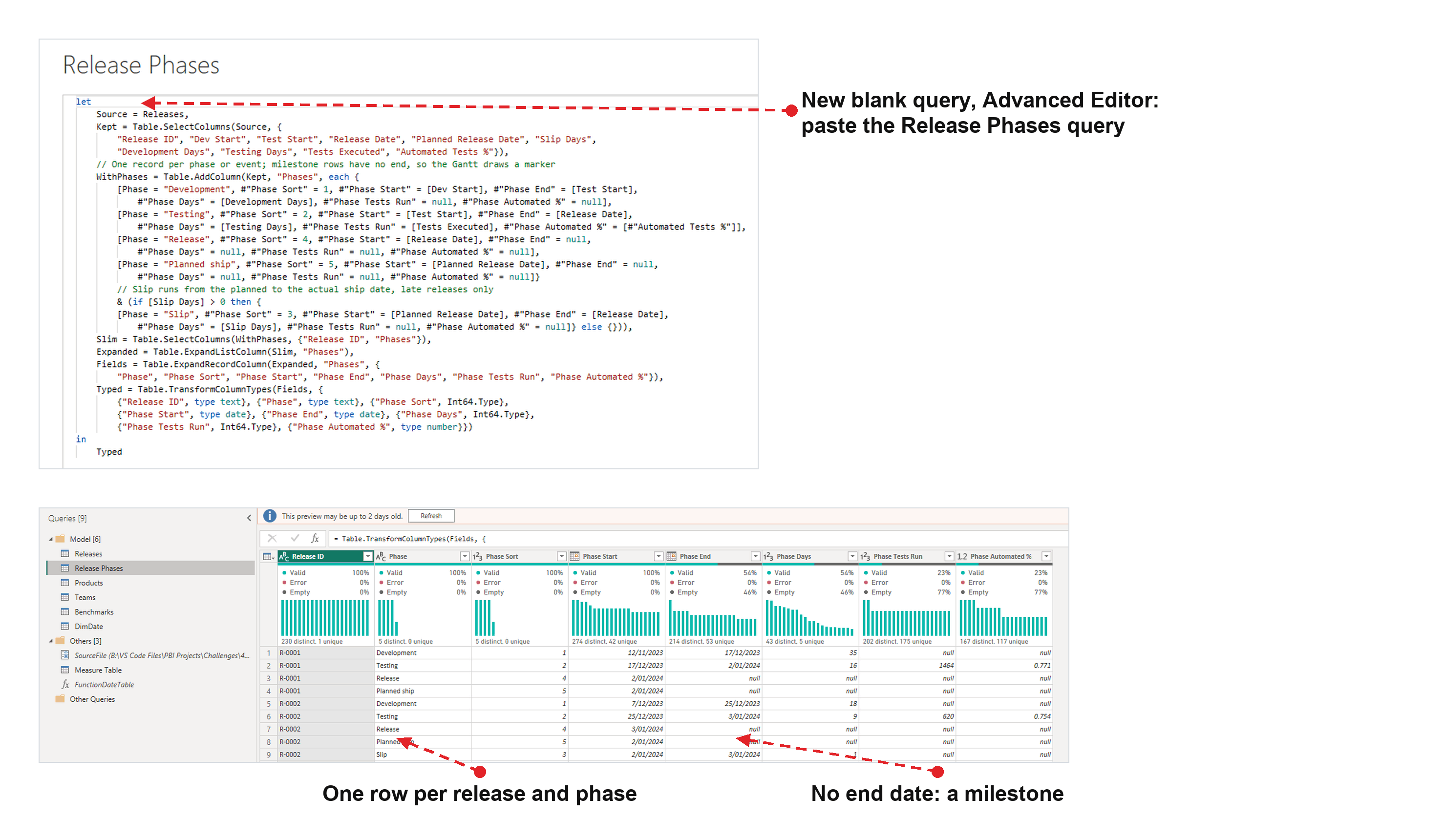
Choose Close & Apply, then in Table view sort two columns with Column tools > Sort by column: Phase by Phase Sort, so the sections run in order, and Release Label by Release Order, so the releases run by date instead of alphabetically.
Step 4: Add a date table and the relationships
The Ship quarter slicer needs a date table. A short calculated one does the job (Modeling > New table):
DimDate a calculated date table with Quarter & Year for the slicer
DimDate =
// Whole years around the ship dates, so every quarter is complete
VAR __Start = DATE ( YEAR ( MIN ( Releases[Release Date] ) ), 1, 1 )
VAR __End = DATE ( YEAR ( MAX ( Releases[Release Date] ) ), 12, 31 )
VAR __Result =
    ADDCOLUMNS (
        CALENDAR ( __Start, __End ),
        "Quarter & Year", "Q" & QUARTER ( [Date] ) & " " & YEAR ( [Date] ),
        "Quarter Sort", YEAR ( [Date] ) * 10 + QUARTER ( [Date] )
    )
RETURN
    __Result
Sort Quarter & Year by Quarter Sort, then use Table tools > Mark as date table with the Date column. (The download uses my full date table; this one is all the chart needs.)
Then check the relationships in Model view. Desktop may detect some of them itself, because the key columns share names. You want four, all many-to-one with a single filter direction:
Releases[Product ID]toProducts[Product ID]Releases[Team ID]toTeams[Team ID]Releases[Release Date]toDimDate[Date]'Release Phases'[Release ID]toReleases[Release ID]
The slicers filter Products and DimDate, those filter Releases, and Releases filters Release Phases, which is the table the chart reads.
Step 5: Write the measures
The date wells take measures, and measures let you decide what shows on which level. These are all the measures the chart uses; I keep them in a measure table. Set the formats as you go: 0% on Phase Progress, 0.0 on Section Days and d mmm yyyy on the two date measures.
Measures the nine behind the chart, from Phase Start to Gantt Subtitle
Phase Start =
MIN ( 'Release Phases'[Phase Start] )

Phase End =
MAX ( 'Release Phases'[Phase End] )

Phase Progress =
// Only a release row gets a fill: the automated share of its tests
VAR __IsTask =
    ISINSCOPE ( 'Release Phases'[Phase] )
        && ISINSCOPE ( Releases[Release Label] )
VAR __Automated = AVERAGE ( 'Release Phases'[Phase Automated %] )
VAR __Result = IF ( __IsTask, __Automated )
RETURN
    __Result

Section Colour =
// Only rows that hold a phase get a colour, so the formatting query adds no empty rows
VAR __HasRows = NOT ISEMPTY ( 'Release Phases' )
VAR __Colour =
    SWITCH (
        SELECTEDVALUE ( 'Release Phases'[Phase] ),
        "Development", "#1F8AE5",
        "Testing", "#14A39A",
        "Slip", "#E8833A",
        "Release", "#1C2B4D"
    )
VAR __Result = IF ( __HasRows, __Colour )
RETURN
    __Result

Section Days =
AVERAGE ( 'Release Phases'[Phase Days] )

Section Team =
// Only a single release row names its team
VAR __IsTask = ISINSCOPE ( Releases[Release Label] )
// Reach the team through the phase rows, so a release with no row in this section gets none
VAR __Team =
    CONCATENATEX (
        SUMMARIZE ( 'Release Phases', Teams[Team] ),
        Teams[Team],
        ", "
    )
VAR __Result = IF ( __IsTask, __Team )
RETURN
    __Result

Section Slip =
// Slip only means something in the Slip and Release sections
VAR __Phase = SELECTEDVALUE ( 'Release Phases'[Phase] )
VAR __Shown = __Phase IN { "Slip", "Release" }
// The releases behind the rows in context, once each
VAR __Releases =
    SUMMARIZE (
        'Release Phases',
        Releases[Release ID],
        Releases[Slip Days]
    )
VAR __Slip = AVERAGEX ( __Releases, Releases[Slip Days] )
VAR __Text =
    IF (
        ISINSCOPE ( Releases[Release Label] ),
        FORMAT ( __Slip, "+0;-0;0" ),
        FORMAT ( __Slip, "+0.0;-0.0;0.0" )
    )
VAR __Result = IF ( __Shown && NOT ISBLANK ( __Slip ), __Text )
RETURN
    __Result

Release Count =
COUNTROWS ( Releases )

Gantt Subtitle =
VAR __Product = SELECTEDVALUE ( Products[Product], "All products" )
VAR __Quarter = SELECTEDVALUE ( DimDate[Quarter & Year], "all quarters" )
VAR __Result = __Product & ", " & __Quarter & "  ·  every release once per section"
RETURN
    __Result
One rule matters more than the rest. Every measure on the visual decides which rows exist, including the ones behind conditional formatting. The Gantt keeps a task row if any measure bound to the visual returns a value for it, so a measure that returns "" or 0 where it should return a blank fills the chart with empty rows. That’s why Section Colour checks for phase rows first, and Section Slip only formats a number that exists: FORMAT turns a blank into "", which isn’t blank. On the roadmap page, a version of that bug turned 17 rows into 676.
Step 6: Add the Gantt and fill its wells
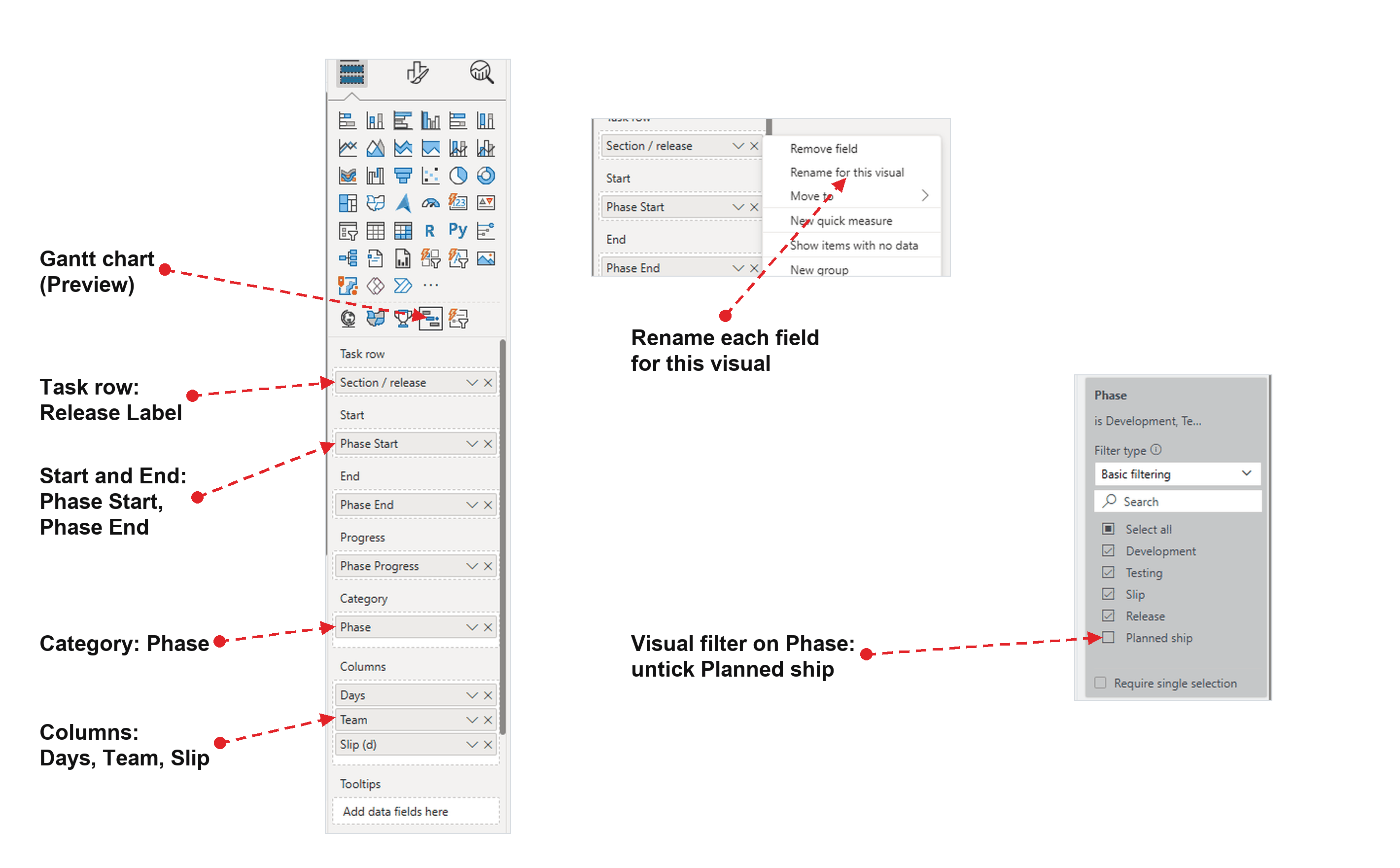
Click an empty part of the canvas, pick Gantt chart in the Visualizations pane, and fill the wells:
| Well | Field | Rename to |
|---|---|---|
| Task row | Releases[Release Label] | Section / release |
| Start | Phase Start | |
| End | Phase End | |
| Progress | Phase Progress | |
| Category | 'Release Phases'[Phase] | |
| Columns | Section Days, Section Team, Section Slip | Days, Team, Slip (d) |
A field’s name in its well becomes its column header, so rename the fields: double-click the field, or right-click it and choose Rename for this visual. The Task row’s name heads the whole tree, which is why it’s “Section / release”. Then open the Filters pane and, under Filters on this visual, untick Planned ship in the Phase filter.
Step 7: Set the layout and the columns
From here on, everything is in the Format visual pane.
| Card | Setting |
|---|---|
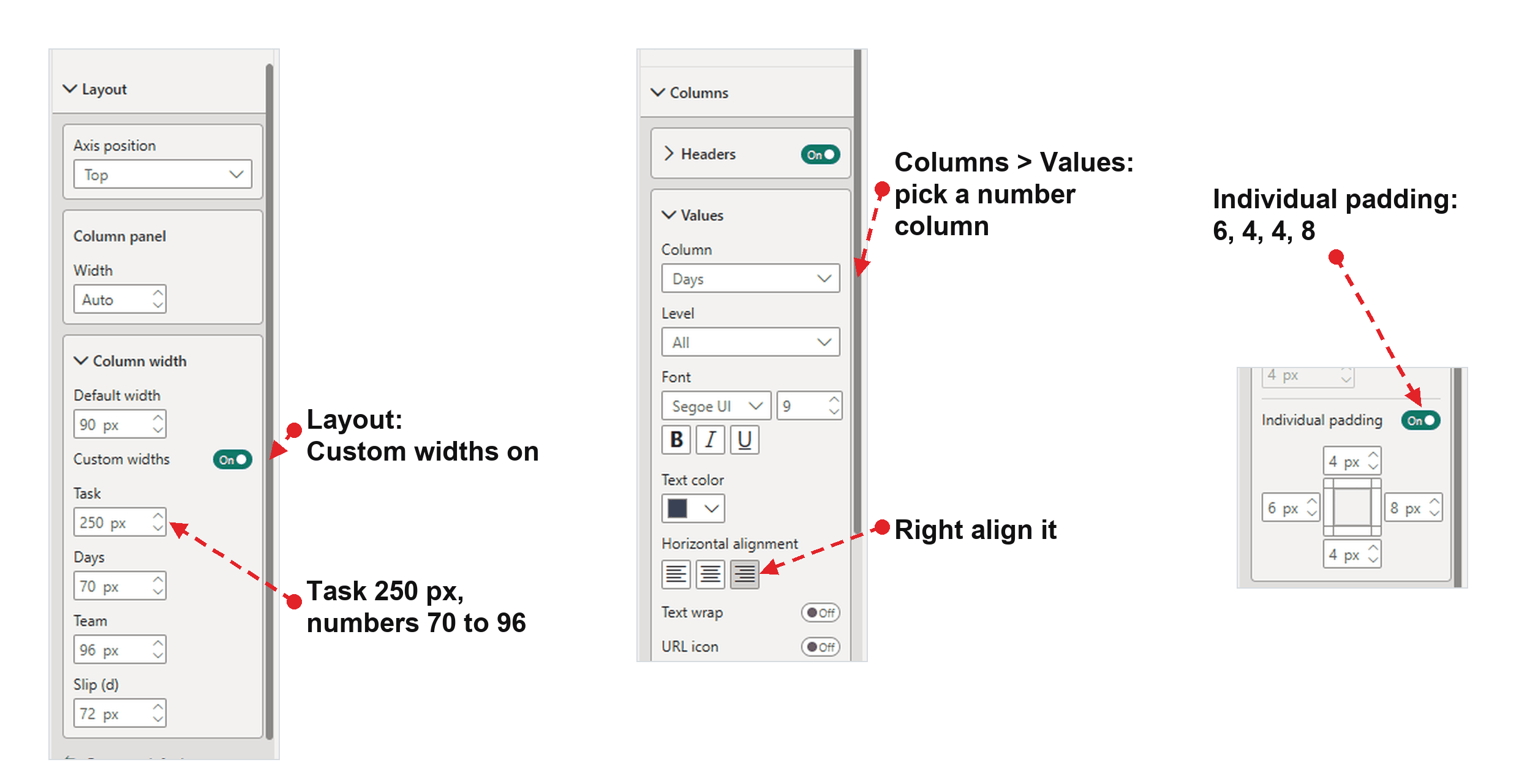
| Layout | Axis position Top; Column panel width Auto |
| Layout > Column width | Default width 90, Custom widths on, then Task 250, Days 70, Team 96, Slip (d) 72 |
| Columns > Headers | Segoe UI 8, bold, #6B7680, background #FBFCFD, padding 4 all round |
| Columns > Values | Segoe UI 9, #3E4955; Individual padding on: left 6, top 4, right 8, bottom 4 |
| Columns > Headers and Values | Pick Days in the Column selector and right-align it, then do the same for Slip (d). Team stays left-aligned. |
The padding sets the row height. A row is the text height (the font size in pixels times 1.35, rounded) plus the top and bottom padding, so 9 pt text gives 16 + 4 + 4 = 24 px rows. You’ll need that number in step 14.
Step 8: Set the axis and the hierarchy
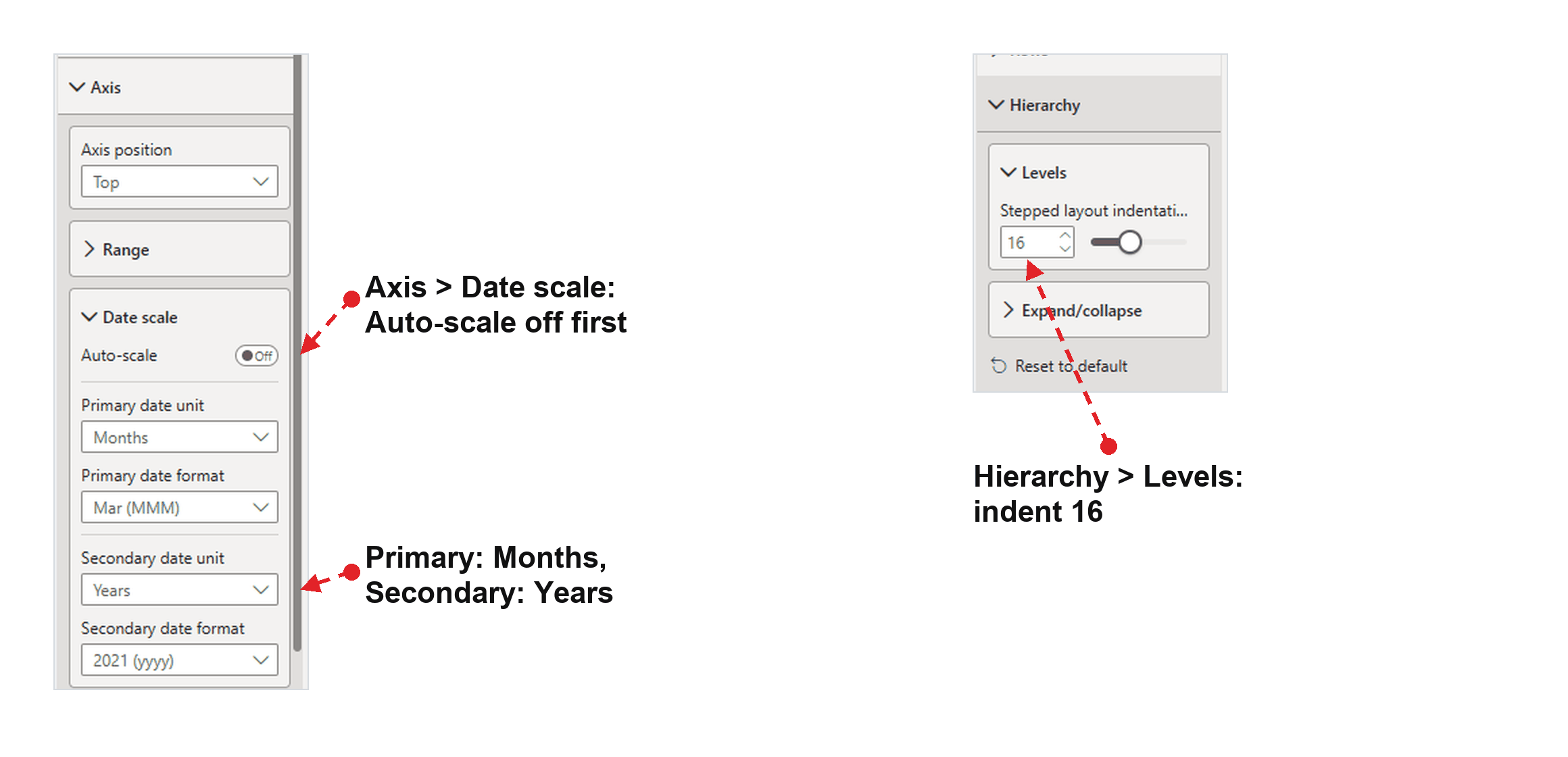
- Axis > Date scale: turn Auto-scale off first. With it on, the axis picks one unit itself and ignores the ones you set. Then set Primary date unit to Months (format Mar) and Secondary date unit to Years (format 2021) for a two-tier axis.
- Axis: leave Range blank so it follows the data. Gridlines and Values stay on; Shading and the zoom slider stay off.
- Hierarchy > Levels: set Stepped layout indentation to 16.
Step 9: Colour the sections and the task rows
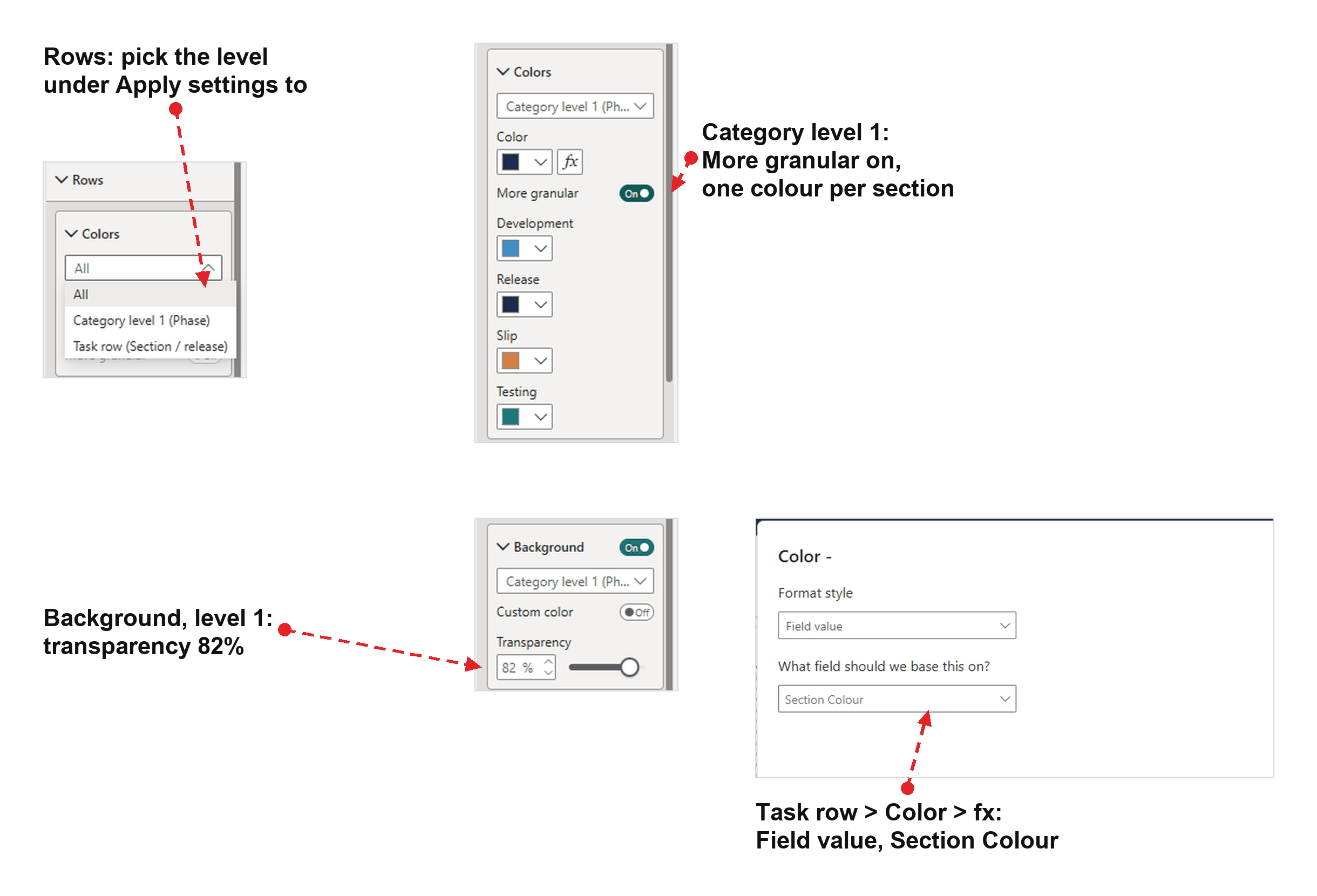
Every card under Rows starts with a selector called Apply settings to, with three choices: All, Category level 1 (Phase) and Task row (Section / release). A setting made on a level applies to that level only, which is how the chart gets coloured section bands over plain task rows.
- All, Colors: set Color to
#1C2B4D, the navy that everything else starts from. - Category level 1, Colors: turn on More granular, which lists each phase with its own colour picker, then set Development
#1F8AE5, Release#1C2B4D, Slip#E8833Aand Testing#14A39A. - Category level 1, Background: turn it on, with Custom color off (so it takes the section’s colour) and Transparency 82%.
- Task row, Background: set Transparency to 100%, so the task rows stay clear.
- Task row, Colors: click fx next to Color, set Format style to Field value, and base it on Section Colour.
- Dividers: off. The bands do the grouping.
You need both colour settings. Conditional formatting colours the task rows (their bars and milestones) but never the category rows, so the bands can only get their colours from the More granular pickers.
Step 10: Shape the bars, progress and milestones
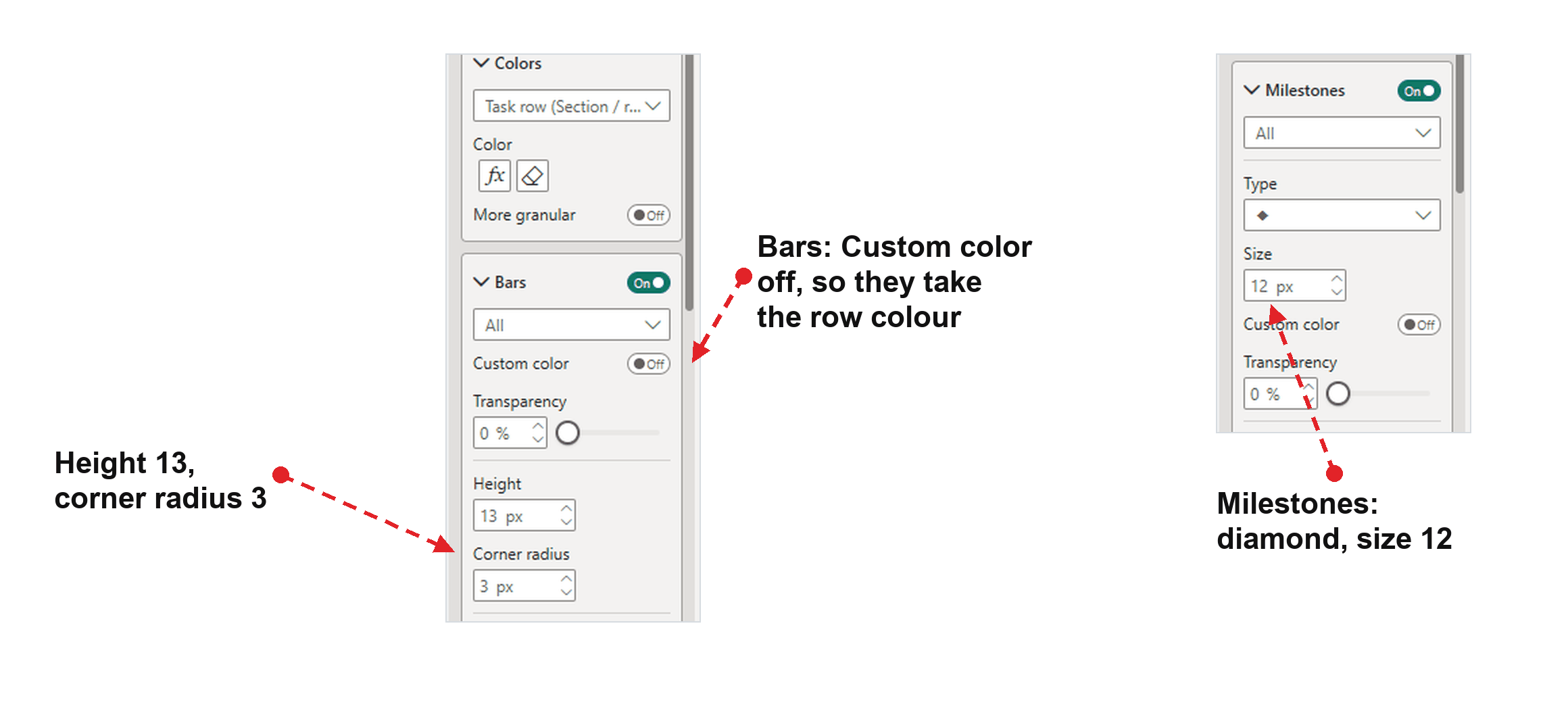
Bars, Progress and Milestones each have a Custom color switch. With it off, they take the row’s colour from step 9, so one measure colours a release’s bars and diamonds together.
- Bars (All): Custom color off, Transparency 0%, Height 13, Corner radius 3, Border off.
- Progress (All): Custom color on,
#FBFCFDat 70% transparency, Height (% of bar) 100, Corner radius 3. That’s the lighter part of each Testing bar. Development rows have no progress value, so they stay solid. - Milestones: the diamond, Size 12, Custom color off.
Step 11: Add the title and subtitle, and turn off the effects
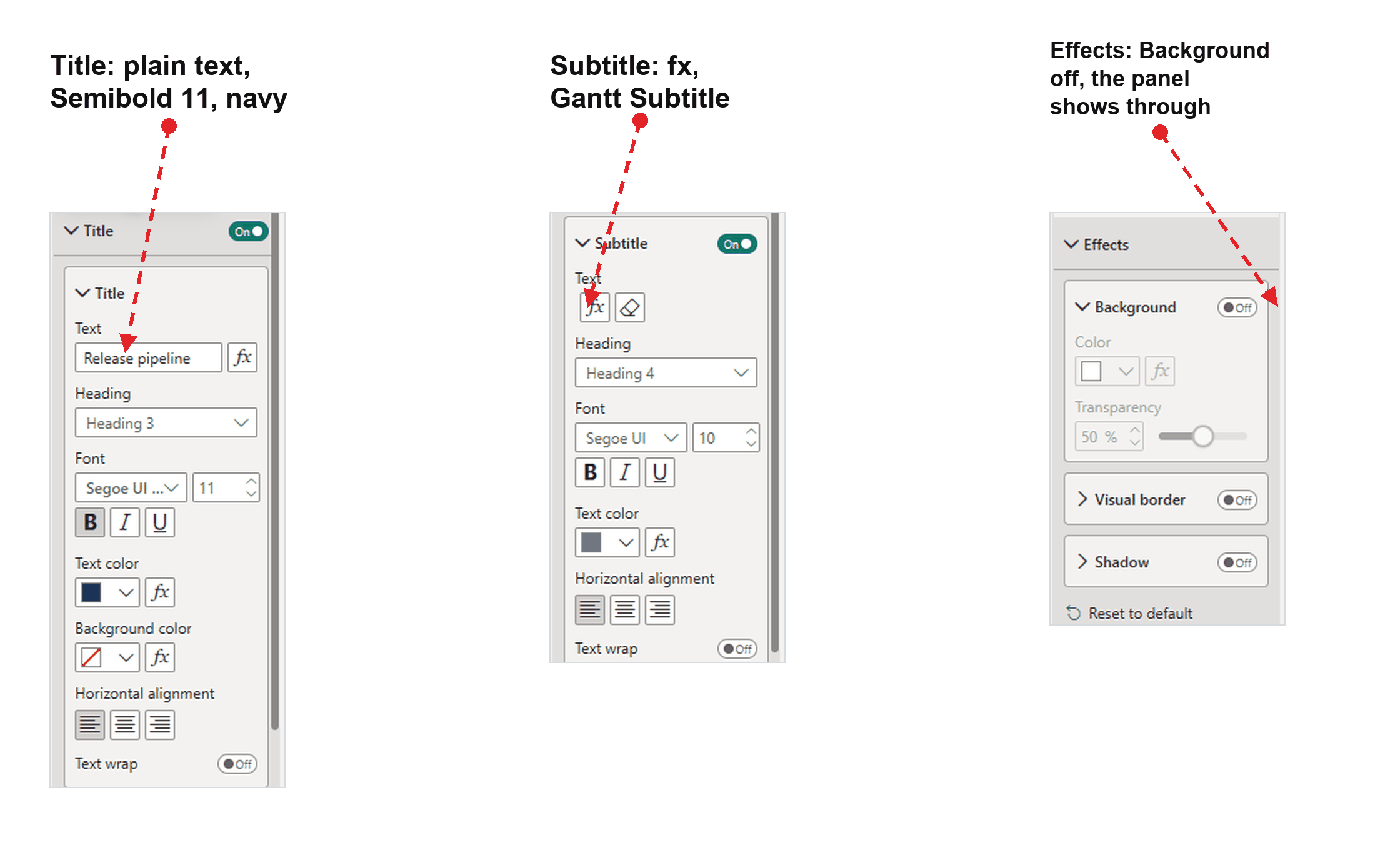
- General > Title: text “Release pipeline”, Heading 3, Segoe UI Semibold 11, bold,
#1C2B4D. - General > Subtitle: click fx, choose Field value and base it on Gantt Subtitle; then Heading 4, Segoe UI 10,
#6B7680. It reads “Forecast, Q4 2025 · every release once per section”, so the chart always says what it’s showing. - General > Effects: Background, Visual border and Shadow all off. Turn Header icons off too. The panel behind the chart (next step) does the framing.
Step 12: Put it on a panel, with a legend and a footnote
My page is 2000 by 1546 px (Format page > Canvas settings, Type Custom), with a #FBFCFD canvas background or a Report Hacker one. My canvas size post explains how I pick the size.
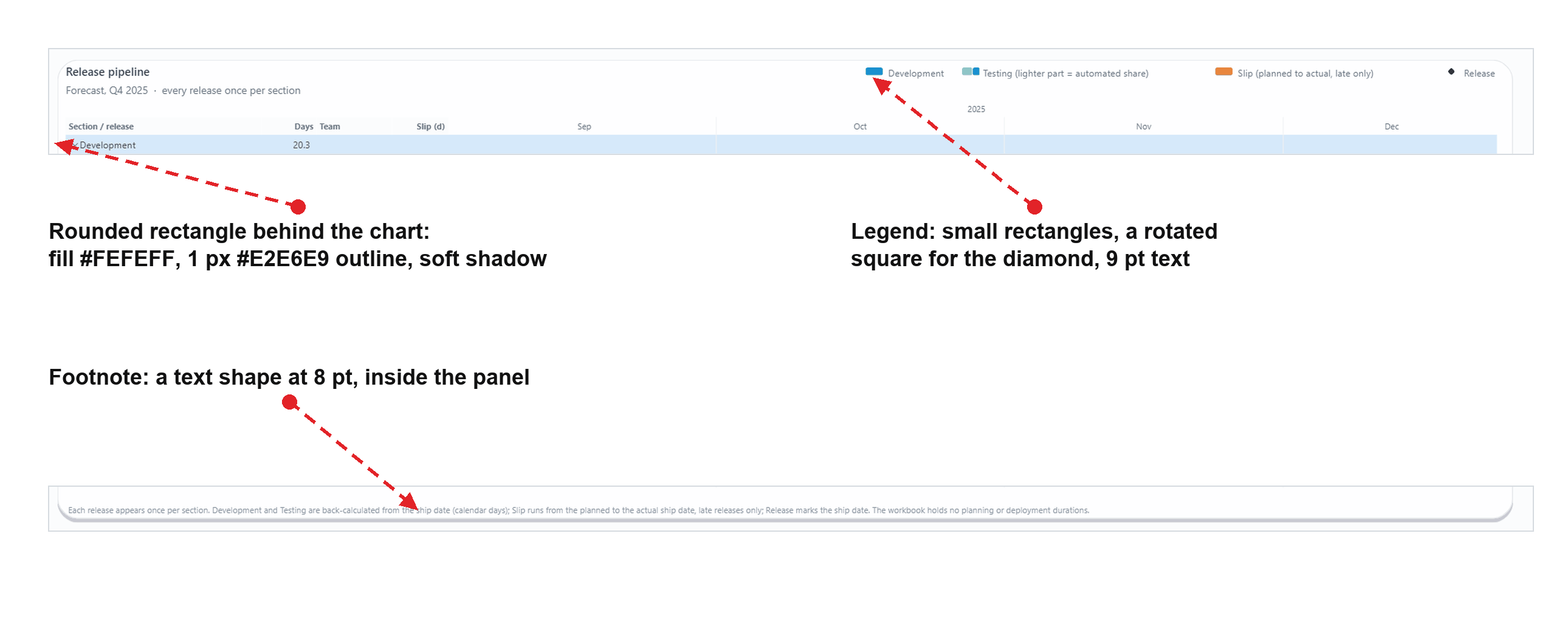
- The panel: Insert > Shapes > Rounded rectangle, 1868 by 1250 at x 112, y 276. Fill
#FEFEFF, border#E2E6E9at 1 px, and a shadow along the bottom in#101828at 80% transparency, blur 3, distance 2. Send it to the back. The Gantt goes on top at the same position, 1868 by 1220, which leaves 30 px for the footnote. - The legend: the Gantt has none, so draw one in the panel’s top-right corner. Use a 22 by 10 rectangle for each bar colour (two small rectangles side by side for Testing,
#77C9C4and#14A39A, to show the lighter automated share), a 10 by 10 square rotated 45 degrees in#1C2B4Dfor the diamond, and a 9 pt#6B7680label beside each. - The footnote: one line of 8 pt
#8A94A1text along the bottom of the panel, saying how the sections are worked out (back-calculated phases, slip for late releases only).
Step 13: Add the slicers
Two list slicers sit above the chart, one on Products[Product] and one on DimDate[Quarter & Year] (titled Ship quarter). Each gets the same settings:
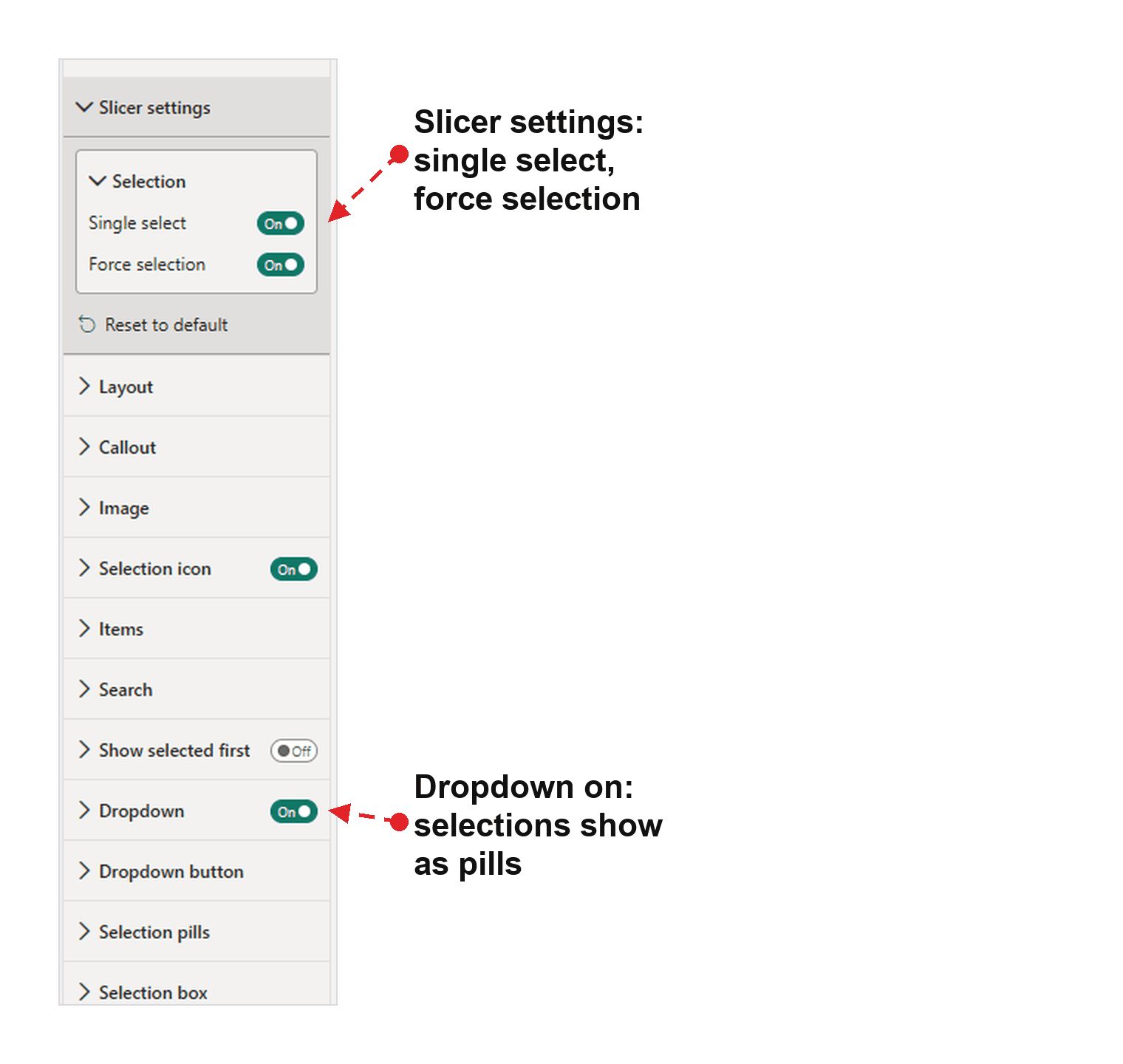
- Slicer settings > Selection: Single select on, Force selection on, so the chart always shows one product and one quarter.
- Dropdown on, so the choice shows as a pill and the list opens on click. It’s another preview feature from the October release.
- A visual-level filter, Release Count is not blank, so only products and quarters with releases appear.
Pick the selection you want readers to land on (mine is Forecast and Q4 2025) before you save.
Step 14: Size the chart so it never scrolls
A Gantt that scrolls hides rows, so size it for the tallest selection the slicers allow:
- Above the first row sit the title, subtitle, column headers and the two-tier axis: about 91 px.
- Each row is 24 px (step 7), and each section adds a row of its own.
- Below the last row, leave about 24 px. With 12 px, a scrollbar appeared.
So the height is 91 + rows × 24 + 24, rounded up to the next 10. Forecast in Q4 2025 has 46 rows (4 section rows, plus 12 + 12 + 6 + 12 release rows), which gives 91 + 1,104 + 24 = 1,219, so 1,220 px. To find your tallest selection, put the same fields in a table visual and try the busiest product and quarter.
Recipe card: the portfolio roadmap
The roadmap uses the same settings with a simpler shape: the release is the task, so the Releases table works as it is, without Release Phases. One bar per release runs from development start to ship; the solid part is development and the pale part is testing. The other two pages, Release anatomy and Team delivery, are in the download.
| Well | Field |
|---|---|
| Task row | Releases[Version], renamed “Product / module / release” |
| Start, End | Gantt Start, Gantt End |
| Progress | Gantt Dev Share |
| Category | Products[Product], then Products[Module Label] |
| Columns | Gantt Type, Gantt Slip, Features Delivered, renamed Type, Slip (d) and Features |
| Tooltips | Gantt Planned, Gantt Team |
Roadmap measures the seven Gantt measures behind the Release train
Gantt Start =
MIN ( Releases[Dev Start] )

Gantt End =
MAX ( Releases[Release Date] )

Gantt Dev Share =
// Only a single release row gets a fill
VAR __IsRelease = ISINSCOPE ( Releases[Version] )
VAR __Dev = SUM ( Releases[Development Days] )
VAR __Test = SUM ( Releases[Testing Days] )
VAR __Result =
    IF (
        __IsRelease,
        DIVIDE ( __Dev, __Dev + __Test )
    )
RETURN
    __Result

Gantt Type =
SELECTEDVALUE ( Releases[Release Type] )

Gantt Slip =
VAR __Slip = AVERAGEX ( Releases, Releases[Slip Days] )
// FORMAT turns a blank into "", which would keep every version as a Gantt row
VAR __Result =
    IF (
        NOT ISBLANK ( __Slip ),
        IF (
            ISINSCOPE ( Releases[Version] ),
            FORMAT ( __Slip, "+0;-0;0" ),
            FORMAT ( __Slip, "+0.0;-0.0;0.0" )
        )
    )
RETURN
    __Result

Gantt Planned =
MAX ( Releases[Planned Release Date] )

Gantt Team =
CONCATENATEX (
    SUMMARIZE ( Releases, Teams[Team] ),
    Teams[Team],
    ", "
)
What changes from the walkthrough:
| Setting | Value |
|---|---|
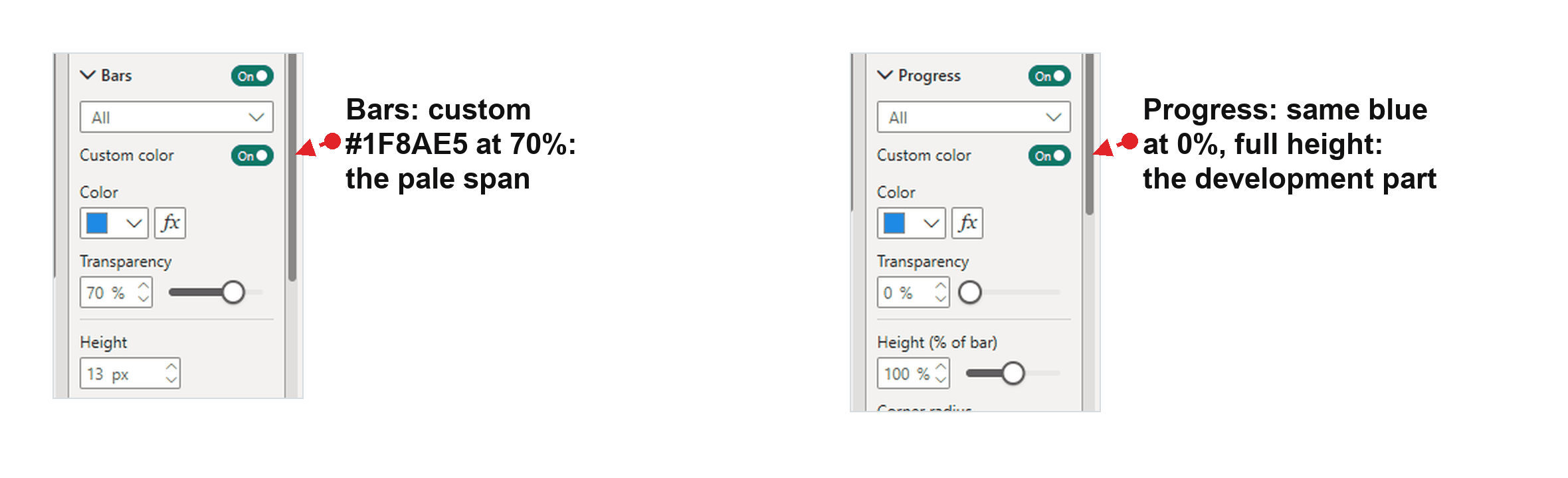
| Rows > Bars | Custom color on, #1F8AE5, Transparency 70%, Height 13 |
| Rows > Progress | Custom color on, #1F8AE5, Transparency 0%, Height (% of bar) 100 |
| Rows > Background | Category level 1: Custom color on, #1F8AE5 at 82%. Category level 2: the same blue at 89%, so the deeper level is paler. |
| Rows > Colors | More granular off and no fx: the bars set their own colour. |
| Layout > Column width | Type 74, Slip (d) 72, Features 80 |
| Columns > Values | Padding top 4, bottom 3, for 23 px rows |
| Slicer | Products[Product Group] instead of Product |
Progress at 100% of the bar’s height and fully opaque paints the development share over the pale bar, so each release reads as development, then testing.
The theme defaults, by hand
In the download, the settings every Gantt shares live in the report theme, so each new Gantt starts styled. Writing theme JSON is a lot for one chart, so here’s the same thing in the Format pane. Set these on your first Gantt (you’ll already have some of them from the steps above):
| Card | Setting |
|---|---|
| Axis > Date scale | Auto-scale off; Months over Years |
| Axis > Gridlines | #EEF1F4 |
| Axis > Values | 8 pt, #6B7680 |
| General > Title | 11 pt, bold, #1C2B4D |
| General > Subtitle | 10 pt, #6B7680 |
| Columns > Headers | 8 pt, bold, #6B7680 |
| Columns > Values | 9 pt, #3E4955 |
| Rows > Bars | Corner radius 3 |
| Rows > Milestones | #1C2B4D |
| Rows > Dividers | #F1F3F6, faint, so the bands do the grouping |
| General > Properties > Padding | Left 16, right 16, top 10 |
Then, for the next chart, copy and paste that Gantt and swap its fields. The copy keeps every setting except the per-column widths and alignments, which are tied to the fields, so set those again after a swap.
Download the .pbix
The whole report, all four pages, is free to download, with the data baked in so it opens without the workbook. You need Desktop 26.10 or later with the Gantt preview on.
Release Gantt.pbix github.com/InsightfulAnalytics/PBI-Files
It sits with the rest of my free Power BI files. The data is ZoomCharts’ challenge dataset, so the repo’s MIT licence doesn’t cover it.
Rebuild it with an agent
If you’d rather an agent did the clicking, my PBI_Agentic_Dev plugins know the Gantt’s file format: the pbip plugin’s pbir-format skill documents its visual.json, and the reports plugin knows the pbir CLI can’t create one. Install the three plugins the prompt needs in Claude Code:
Install commands the marketplace, then the pbip, reports and semantic-models plugins
claude plugin marketplace add InsightfulAnalytics/PBI_Agentic_Dev
claude plugin install pbip@power-bi-agentic-dev
claude plugin install reports@power-bi-agentic-dev
claude plugin install semantic-models@power-bi-agentic-dev
Then put the workbook in an empty folder, start Claude Code there and paste this. It points the agent at this post as the spec and fills in the two pages the post doesn’t walk through:
Build a Power BI project (PBIP) called Release Gantt in this folder, from the workbook Software_Delivery_Quality_challenge_dataset.xlsx (the ZoomCharts Power BI challenge, October 2026). Use https://binexus.net/blog/power-bi-gantt-chart/ as the spec: its queries, measures and Format pane settings are the ones to use. Model * A SourceFile text parameter holding the workbook’s full path, then the article’s Products, Teams, Releases and Release Phases queries. * A DimDate table over whole years of release dates, marked as a date table, with Quarter & Year sorted by Quarter Sort. * Relationships: Releases to Products, Teams and DimDate (on Release Date), and Release Phases to Releases. * Sort Phase by Phase Sort and Release Label by Release Order. * Every measure from the article in a Measure Table, in display folders. Report: four pages, 2000 px wide, each built around one native Gantt chart (visualType ganttChart, a preview in Desktop 26.10). The pbir CLI cannot create this visual, so write its visual.json from the pbir-format skill. 1. Portfolio roadmap: the article’s recipe card (Release train), with Product Group and Ship quarter slicers. 2. Release anatomy: one module in one month. Category Version Label, task Phase, Start and End from Phase Start and Phase End, Progress from Phase Progress, columns Days, Tests run and Automated. A visual filter keeps Development, Testing and Planned ship. Task rows coloured by a Phase Colour measure (Development #1F8AE5, Testing #A9D0F5); bars 17 px; progress custom #1F8AE5 at 0% transparency and 42% of the bar height; milestones custom #1C2B4D, size 12; axis Day over Month with weekends shaded and the zoom slider on; value padding 9 top and bottom. 3. Team delivery: the roadmap’s bars for one team and one half year. Task rows coloured by a Gantt Late Colour measure (late #E8833A, on time #1F8AE5), with Custom color off on bars and progress so a late release turns orange end to end; the title from a measure that names the team. 4. Delivery phases: the article’s Release pipeline, with the Product and Ship quarter list slicers in dropdown mode. On every page: the Gantt on a rounded rectangle with a drawn legend and a footnote (step 12), the shared settings from the theme defaults section in the report theme under ganttChart, and each Gantt sized so its tallest selection never scrolls (step 14). Validate the project, open it in Power BI Desktop and screenshot each page so I can compare it with the article. Ask me before anything the article doesn’t settle.
I wrote it from the steps that built the original, but I haven’t run this exact prompt end to end, so check what it builds against the screenshots here.
Changelog
- 21 Oct 2026: published, on Power BI Desktop 26.10.
Feedback, or a correction?
If something here could be clearer, more accurate or done a better way, I’d like to hear it.